
The Admin UI
The Admin UI is the management console for a single virtual site. While the SuperAdmin UI governs the whole server instance, the Admin UI focuses on the day to day operation of one virtual site: its users, storage, protocols, automation, and security.
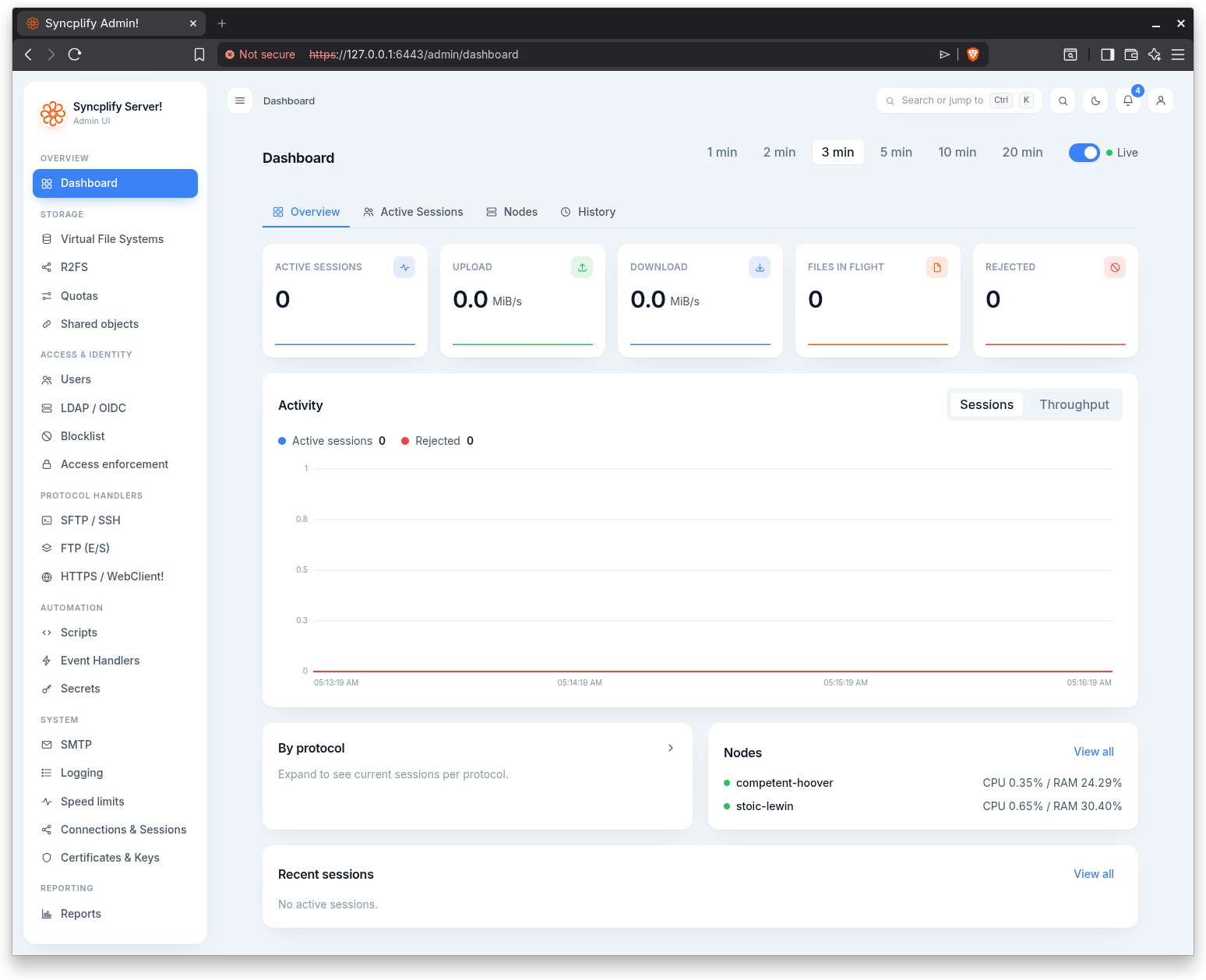
What the Admin UI is for
Each virtual site has its own Admin UI. Through it an administrator can:
- Watch live activity on the real time dashboard.
- Manage virtual file systems (VFS), R2FS!, quotas, and shared objects.
- Create and edit user accounts, groups, and their permissions.
- Configure LDAP and OIDC identity sources and access enforcement policies.
- Tune the SFTP, FTP, and WebClient protocol handlers.
- Build scripts, event handlers, and secrets for automation.
- Configure SMTP, logging, speed limits, connection limits, and certificates.
- Generate operational reports.
How access works
Admin users are created and assigned to virtual sites by a SuperAdmin. An Admin can only sign in to and manage the virtual sites that have been granted to that account. Within a virtual site, each Admin carries a set of permissions that decides which sections are visible and which actions are allowed.
The left navigation adapts to those permissions. Items an Admin is not allowed to view are hidden, and any navigation group left with no visible items is omitted entirely. As a result two administrators of the same site may see different navigation depending on what each one is permitted to do.
Layout
The console is organized into three areas.
Grouped navigation
The left rail groups every section under a heading that matches the area it belongs to, in this order:
- Overview: Dashboard.
- Storage: Virtual File Systems, R2FS!, Quotas, Shared objects.
- Access & Identity: Users, LDAP / OIDC, Shield, Access enforcement.
- Protocol Handlers: SFTP / SSH, FTP (E/S), HTTPS / WebClient!.
- Automation: Scripts, Event Handlers, Secrets.
- System: SMTP, Logging, Speed limits, Connections & Sessions, Certificates & Keys.
- Reporting: Reports.
Top bar
The top bar shows the title of the current page and, on the right, a set of global controls:
- A theme toggle that switches between light and dark appearance.
- A notifications bell with a badge for the number of unread notifications.
- An account button that opens the account menu.
- When a newer server version is published, an "Update available" pill appears. It opens a short panel that names the version, links to the release notes, and says that installing updates is a SuperAdmin task; when the installation is not eligible to install it, the panel says that the SuperAdmin must extend the maintenance plan in the Syncplify Customer Portal first, because software that is not up to date may be vulnerable.
Account menu
The account button opens a menu with:
- Settings: your own Admin account settings.
- Manual: this manual.
- Knowledge base: the Syncplify knowledge base.
- Sign out: end your session.
License gated features
Some sections require a specific license edition. When a feature is licensed it works normally. When it is not, the console either hides it or shows it locked with a notice describing the edition required. The sections that depend on licensing are called out on their own pages: cloud VFS backends and at rest encryption, LDAP and OIDC account types, app passwords, scripting and event handlers, reporting, and shared objects oversight.
What is in this section
The remaining pages document each area of the Admin UI in turn, starting with signing in and the dashboard, then working through the navigation groups in order.