
Signing in
The SuperAdmin UI opens on a sign in screen. It supports a local username and password, optional single sign on through an OpenID Connect provider, and a second authentication factor when two factor authentication is enabled.
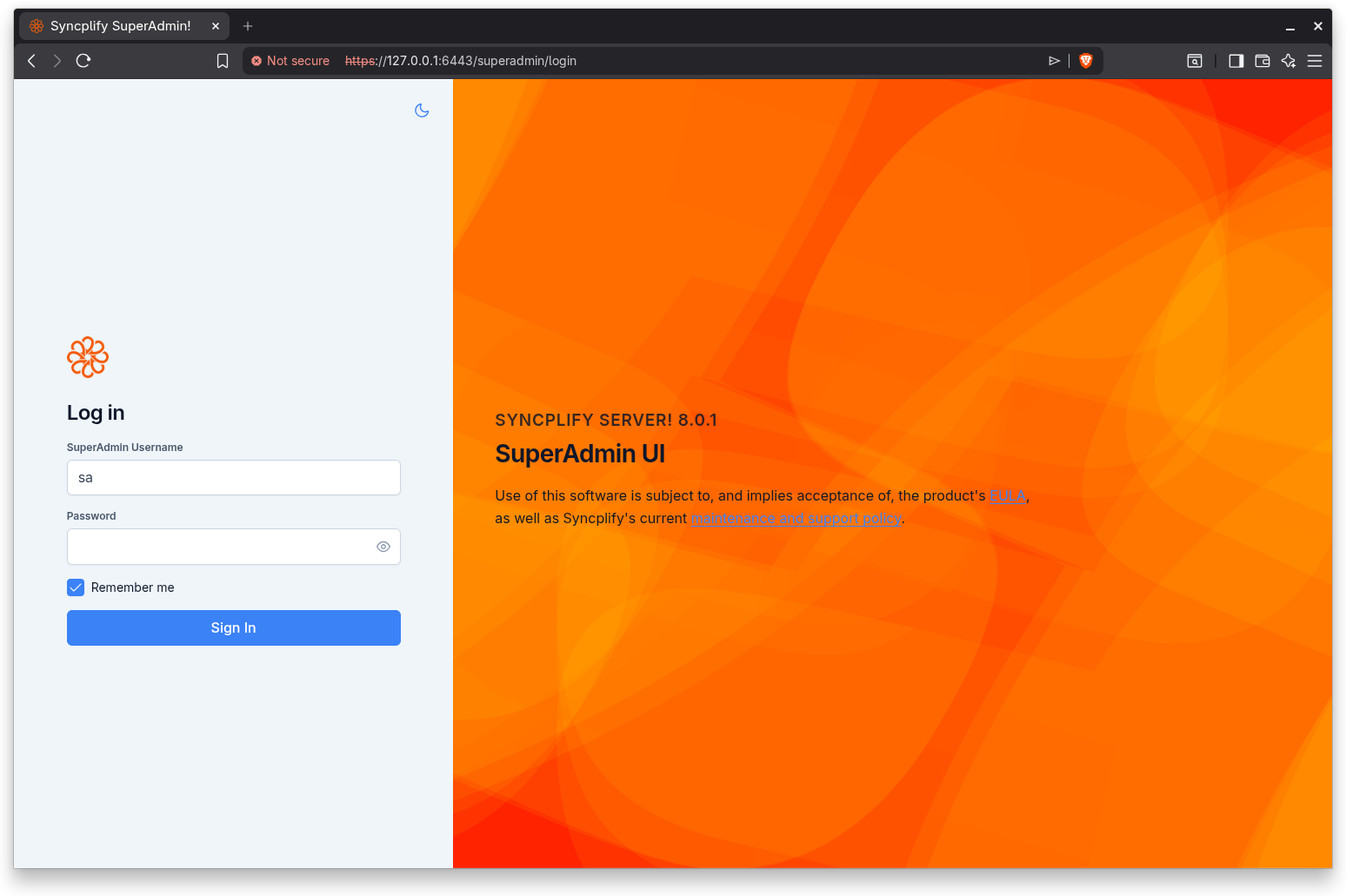
Password sign in
Enter your SuperAdmin username and password, then select Sign In.
- SuperAdmin Username: the username of your SuperAdmin account.
- Password: your account password.
- Remember me: when selected, your username is remembered in this browser for next time.
The brand panel shows the product name and the running version, read from the server.
Two factor authentication
If your account has two factor authentication enabled, after the password step the screen asks for the one time code from your authenticator app. Enter the six digit code; sign in completes automatically as soon as all six digits are present.
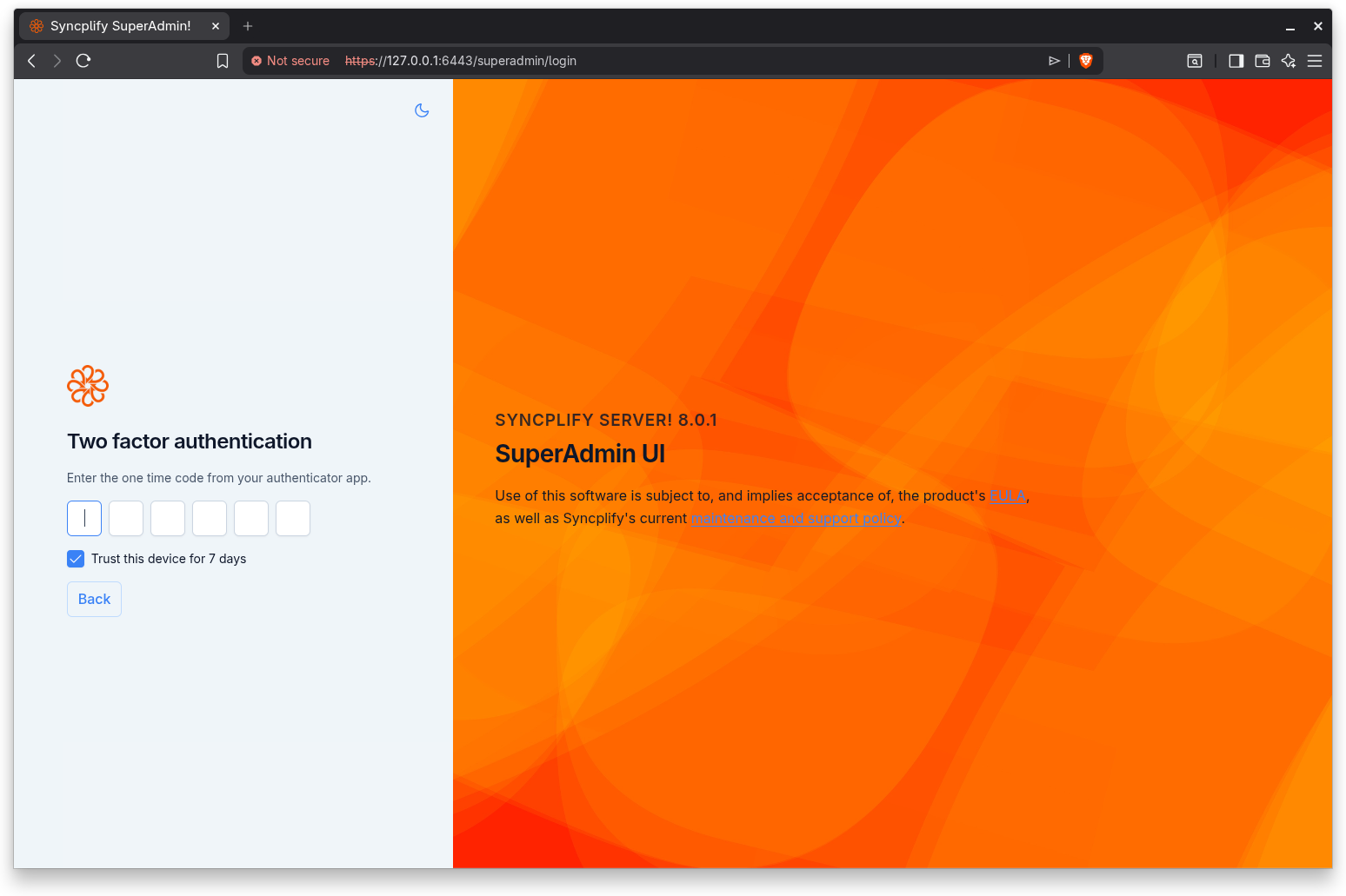
When the server allows trusted devices, a "Trust this device for N days" option appears under the code field. Selecting it lets you skip the second factor on this device for the configured number of days. Device trust and its duration are controlled in Global Configuration under General.
Single sign on
When one or more SSO providers are configured for SuperAdmins, the sign in screen shows them below the password form, separated by an "or" divider. Select a provider to be redirected to it; after you authenticate there, you are returned to the console and signed in.
NOTE
Single sign on for the SuperAdmin console relies on OpenID Connect and may require a higher license edition. SSO providers are configured in Global Configuration under Single Sign On; see the Single Sign On (OIDC) guide for the full picture, including Google and Microsoft Entra ID setup.
Passkey sign in
If you have enrolled a passkey for your SuperAdmin account (in Settings under Security), the sign in screen also shows a "Sign in with a passkey" button below the password form. Select it and confirm with your device screen lock or hardware security key; no username or password is typed, and no one time code is asked, because unlocking the passkey already counts as a second factor. The button appears only on browsers that support passkeys. See the Passkeys (WebAuthn) guide for details, including the host name binding rules.
Forced password change
If your account is flagged to change its password, after a successful sign in the screen requires you to set a new password before continuing. Enter and confirm the new password, then save.
Theme toggle
A light and dark theme toggle is available on the sign in screen (the sun or moon button on the side rail). Your choice is remembered in this browser.