
WebClient
The WebClient is the browser based interface to Syncplify Server. It lets you sign in with nothing but a web browser, then browse your space, upload and download files, organize folders, and share files and folders with other people. There is nothing to install: everything runs in the browser, on a computer, a tablet, or a phone.
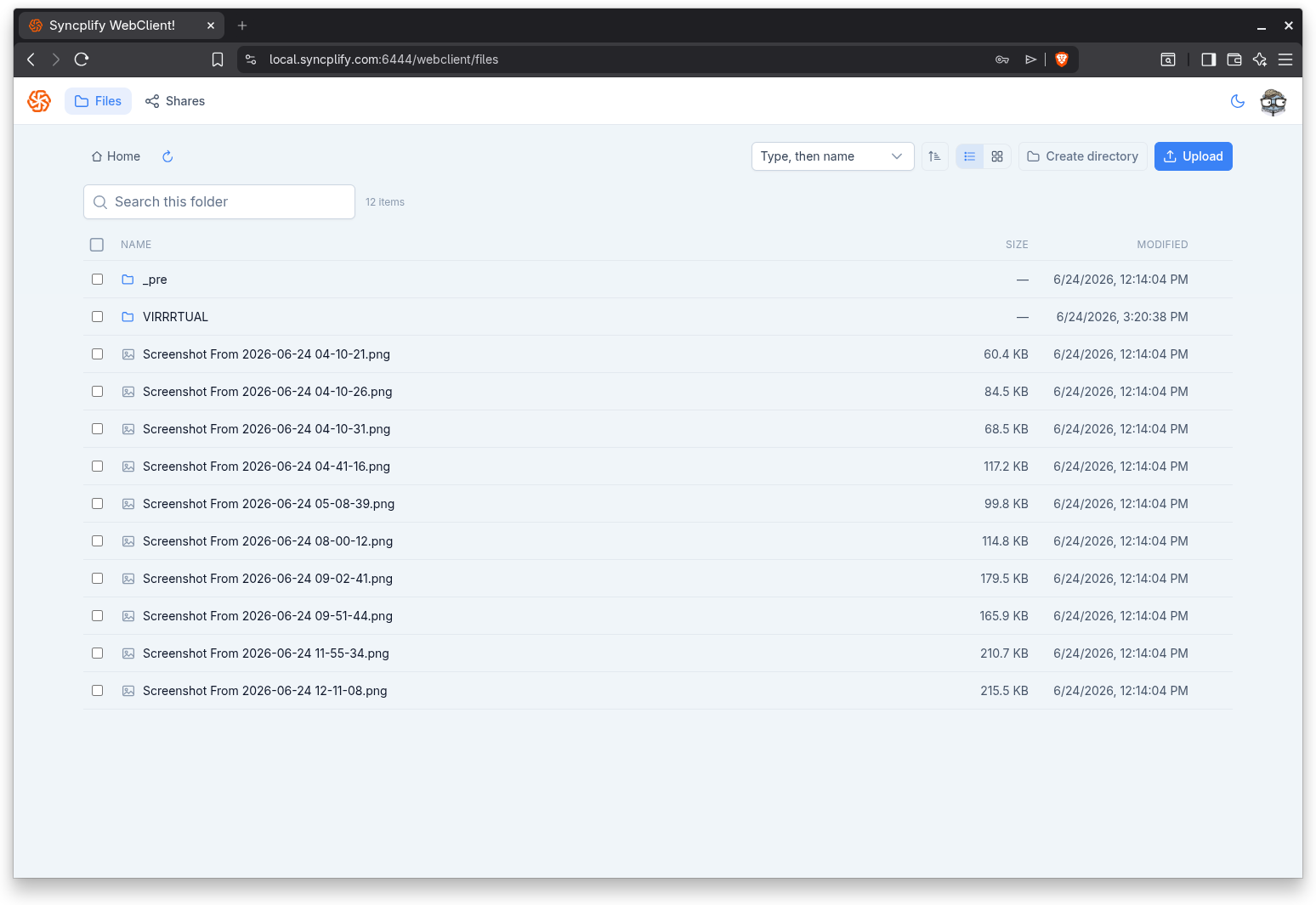
Who uses the WebClient
The WebClient is meant for end users: employees, partners, and customers who need a simple, secure way to work with their files on the server. It is also the place where recipients open the links that other users share with them, so even people without an account on the server may interact with it.
What you can do in the WebClient depends on the permissions the administrator has granted to your account and on the features enabled by your server license. For example, the ability to share files and folders is governed by your license; if sharing is not available, the Shares area simply does not appear.
The layout
Once you sign in, the WebClient keeps a single, consistent layout.
Top navigation
A slim bar runs across the top of every page. It contains:
- The server or company logo on the left.
- The navigation links: Files is always shown; Shares appears only when your account is allowed to share.
- A theme toggle and an account button on the right.
Theme
The sun and moon button toggles between a light theme and a dark theme. Your choice is remembered for the next time you visit. The same toggle is also available on the sign in screen and on shared link pages.
Account menu
The round account button on the far right opens a small menu. Depending on your account type and the server configuration, it offers:
- Settings, to change your password, language, two factor authentication, and other personal options.
- Manual, a link to this documentation.
- Knowledge base, a link to additional articles and answers.
- Sign out, to end your session.
In this section
- Signing in: password, single sign on, and two factor authentication.
- The file manager: browsing, uploading, downloading, and organizing files.
- Sharing: creating shareable links for files and folders.
- Managing your shares: the list of links you have created.
- Shared links: what recipients see when they open a link.
- Settings: your personal preferences and security options.