Sharing
Sharing lets you create a link that other people can open to access a file or a folder, without giving them an account on the server. You start a share from the file manager: open the context menu of a file or a folder and choose Share. This opens the share composer.
Sharing is governed by your server license. If your account or license does not include sharing, the Share action and the Shares area do not appear.
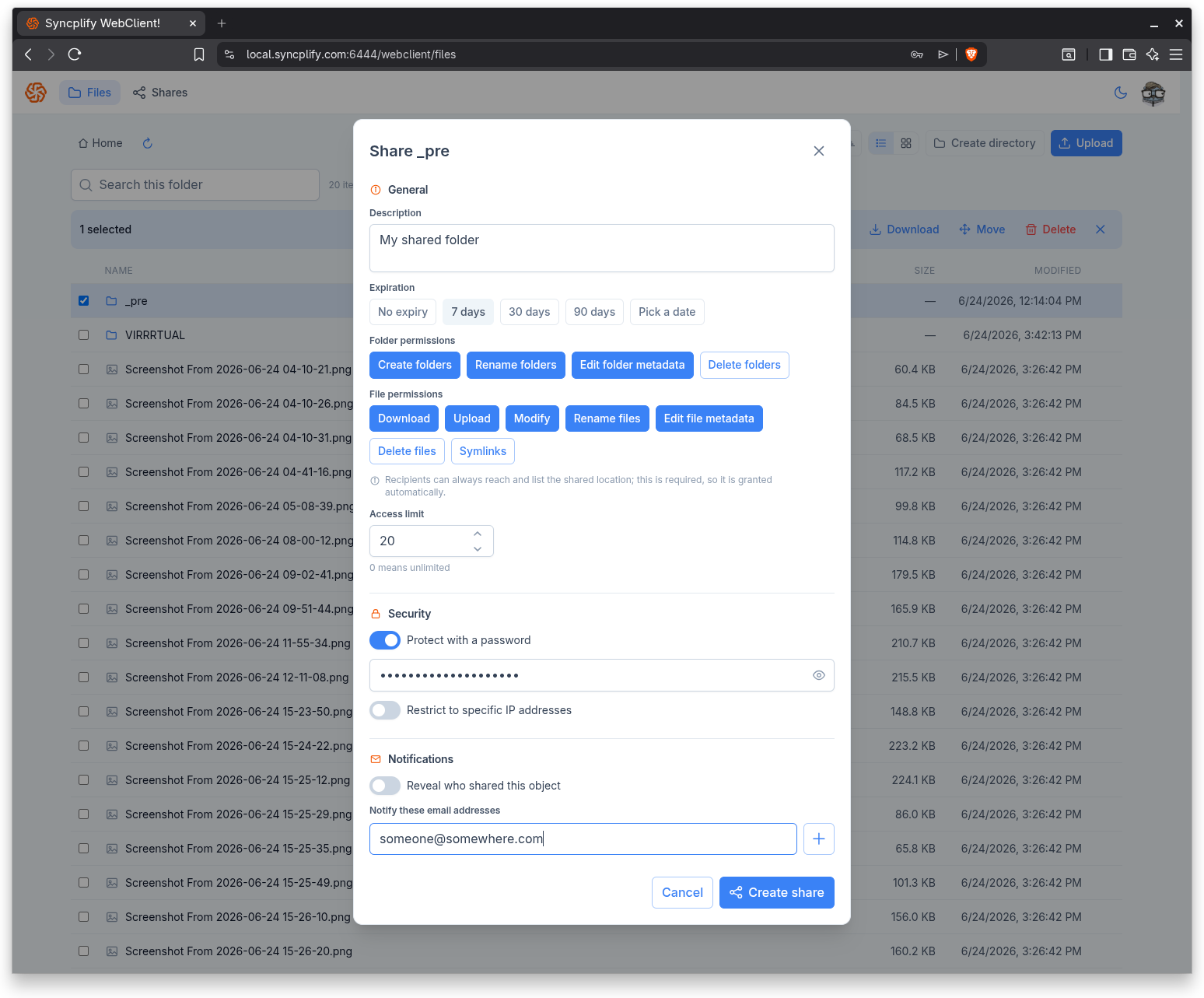
Sharing a file versus sharing a folder
The composer adapts to what you are sharing, because the two cases are fundamentally different.
- When you share a single file, the only possible action for the recipient is to download it. For that reason no permission picker is shown at all. The recipient simply sees a download page.
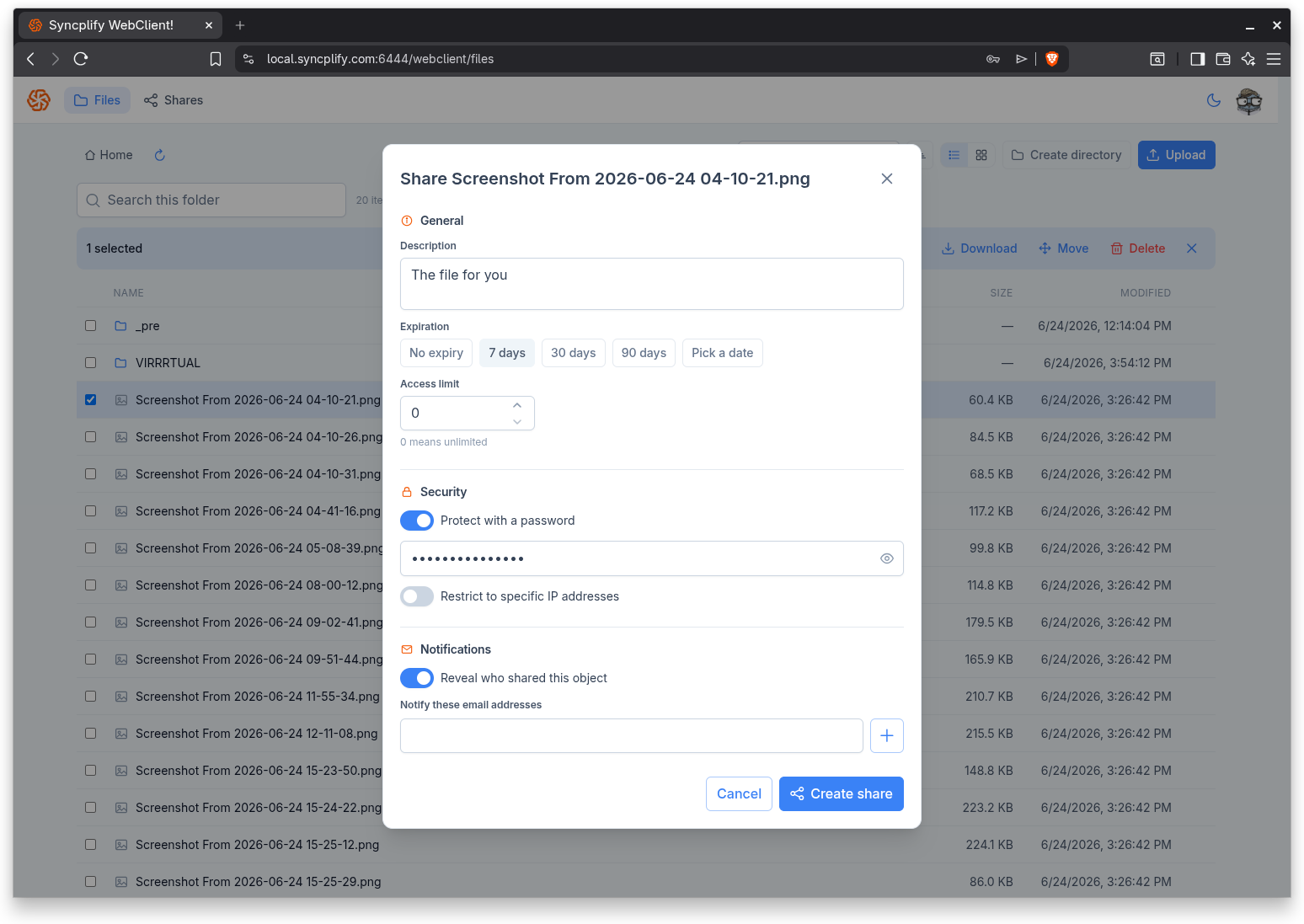
- When you share a folder, the recipient gets a full file manager scoped to that folder, so the composer lets you choose what they are allowed to do with folder permissions and file permissions.
In both cases the ability to reach and list the shared location is always granted automatically, because a share cannot open without it. For folder shares, a note in the composer reminds you that listing the shared location is always allowed; you cannot turn it off.
Permissions for folder shares
When you share a folder, you can grant the recipient any combination of the permissions your own account holds, presented as two groups.
Folder permissions:
- Create folders
- Rename folders
- Edit folder metadata
- Delete folders
File permissions:
- Download
- Upload
- Modify
- Rename files
- Edit file metadata
- Delete files
- Symlinks
By default a new folder share grants Download only. Select the permissions you want to add; only the permissions you yourself have are offered.
Share options
The composer is organized into General, Security, and Notifications.
General
- Description: an optional note that helps you remember what the share is for; it can also be shown to the recipient.
- Expiration: choose No expiry, 7 days, 30 days, 90 days, or Pick a date for a custom date and time. After the expiration the link stops working.
- Access limit: the number of times the link may be used, where 0 means unlimited.
Security
- Protect with a password: turn this on and set a password the recipient must enter before they can open the share.
- Restrict to specific IP addresses: turn this on and add one or more IP addresses or CIDR ranges; only those addresses may open the share. The composer checks that each entry is a valid IP address or range before adding it.
Notifications
- Reveal who shared this object: when on, the recipient can see your name as the person who shared the object. When off, your identity is not shown.
- Notify these email addresses: add one or more email addresses to be notified about the share.
The resulting link
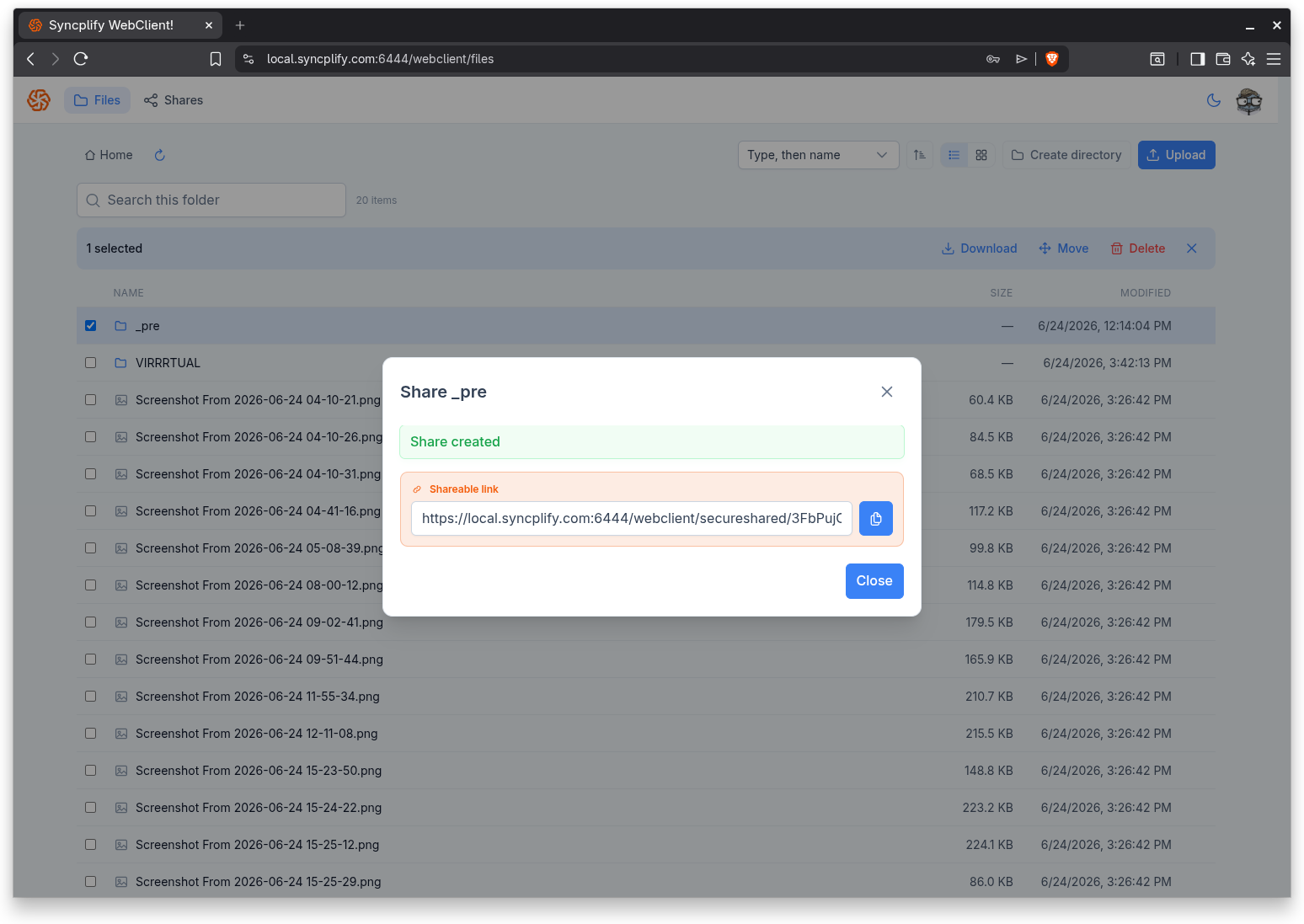
When you select Create share, the WebClient creates the share and shows the shareable link. Use the copy button to put the link on your clipboard, then send it to the recipient through any channel you like. The link is also kept in your Shares list, where you can find it again later.