
License
The License area shows the active license and maintenance status, and provides the activation wizard. Until a valid license (trial or full) is active, the activation experience is the only thing reachable in the console.
License status
When a license is active, the License page shows it inside the console with an Active badge.
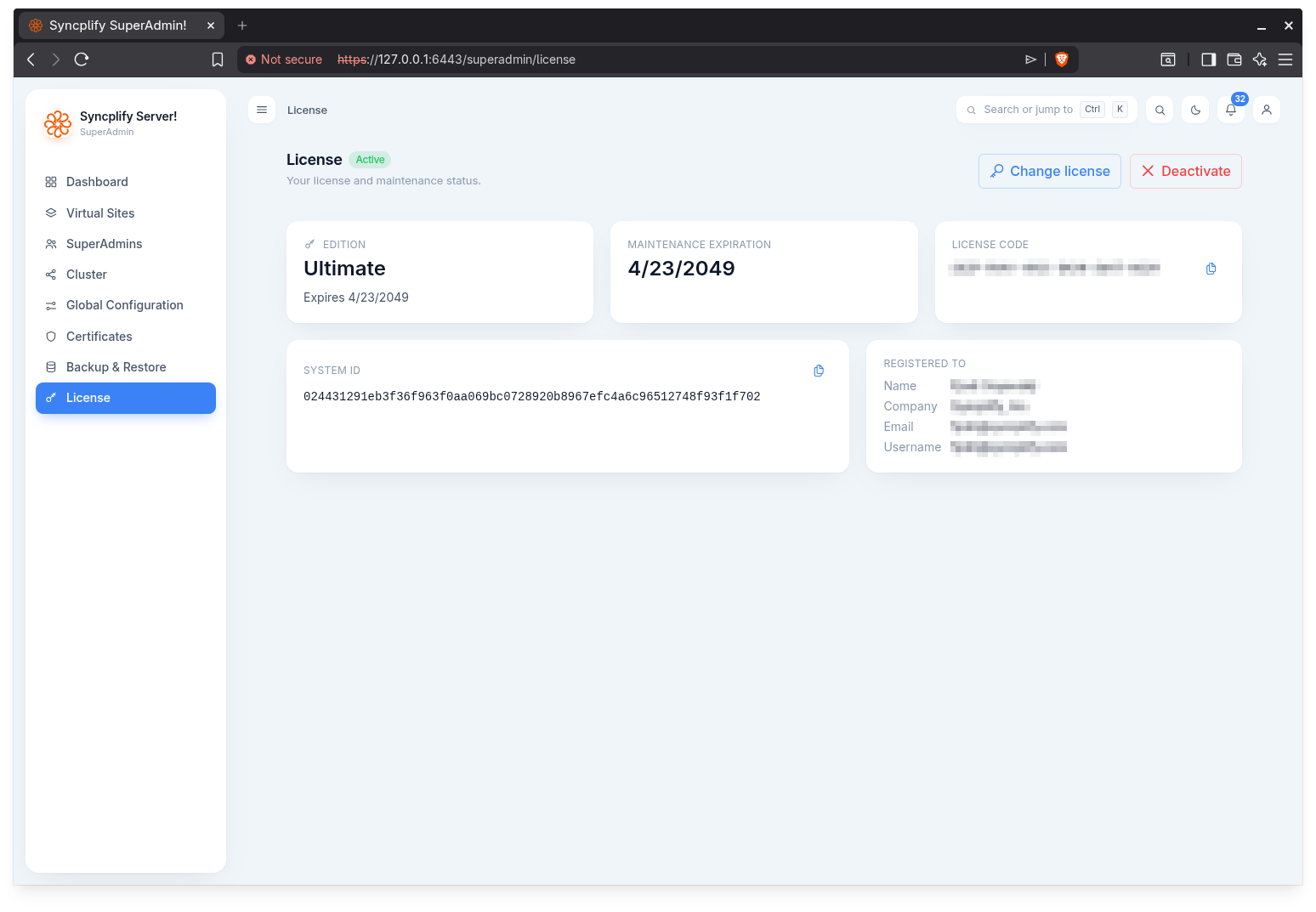
It presents:
- Edition: the license type, and the license expiry date when applicable.
- Maintenance expiration: the maintenance date, loaded in the background. It is highlighted when maintenance expires soon or has already expired, with a link to renew, or, when there is no maintenance plan or no outbound internet access, a link to check status in the Customer Portal. An active maintenance plan is what makes the installation eligible to install updates and upgrades (see below).
- License code and System ID: each can be copied to the clipboard.
- Registered to: the customer name, company, email, and username when present.
Two actions are available in the header:
- Change license: opens the activation wizard in a dialog to activate a different license.
- Deactivate: deactivates this license. Once deactivated it can activate a different machine, but it cannot be reactivated on this one. You are returned to the sign in screen.
NOTE
Activating, changing, or deactivating a license changes the capabilities baked into your session, so the console signs you out and returns you to the sign in screen afterward.
Maintenance and updates
Updates and upgrades require an active maintenance plan. While the plan is active, or while a trial license is valid, the server can install the versions published on Syncplify's release channel, from the Updates page or automatically according to the update policy. Once the plan has expired, the server still learns that a newer version exists and says so on the Updates page, the Dashboard, at sign in and in the notifications, but it is not eligible to install it until the plan is extended in the Syncplify Customer Portal. Software that is not up to date may be vulnerable, because it is not running the latest security patches; keeping the maintenance plan active is what keeps the server patched.
When the licensing service cannot be reached from the server, the standing cannot be verified: automatic updates pause, and a manual update asks a SuperAdmin to accept responsibility.
Activation wizard
When no license is active, a full page activation gate appears (with a theme toggle but no navigation), so nothing else is reachable until a license is activated.
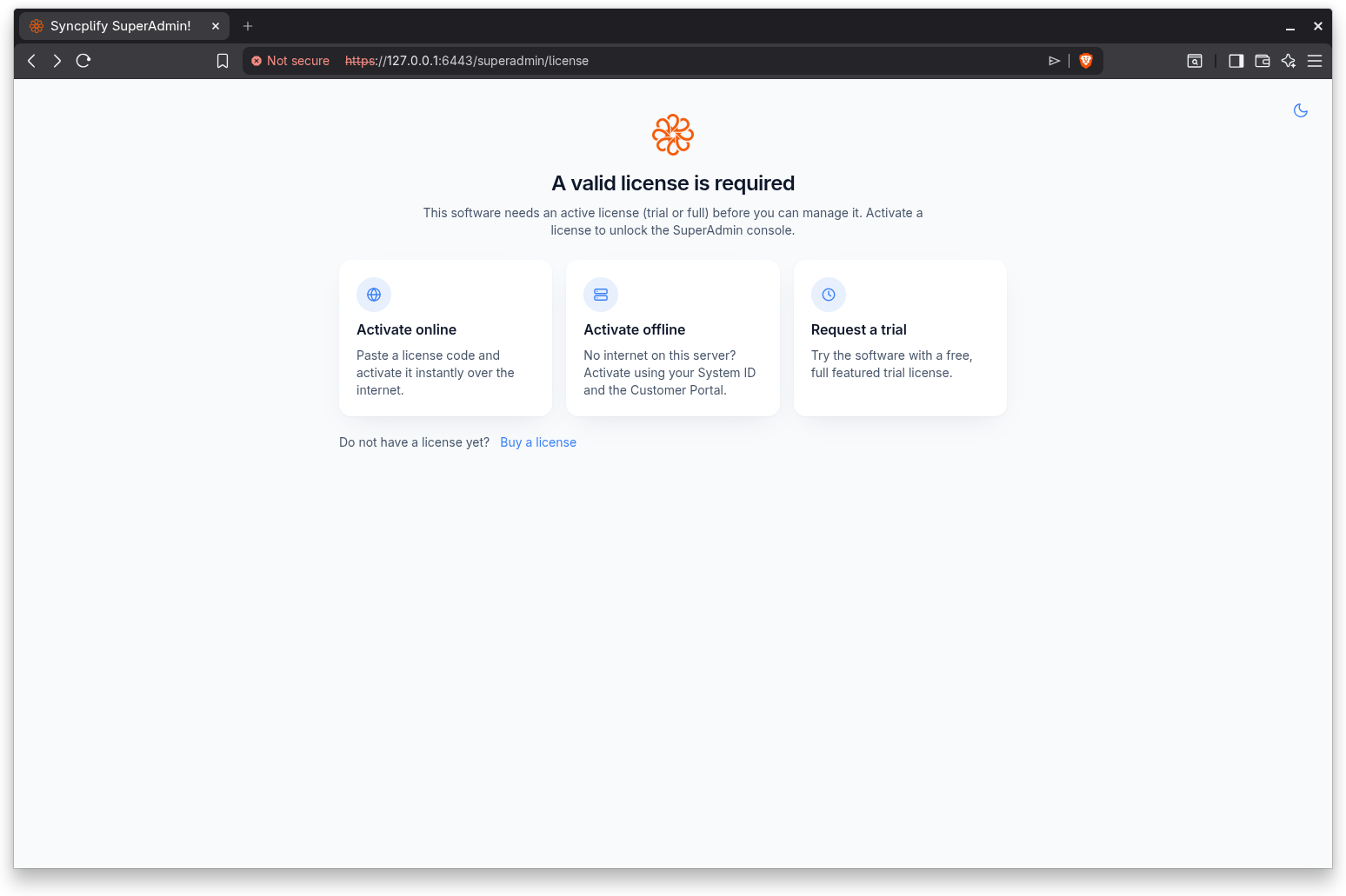
The wizard first asks how you want to activate:
- Activate online: paste a license code from your Customer Portal and activate it instantly over the internet.
- Activate offline: for a server with no internet access. Copy the server's System ID, paste it into the Customer Portal from a device that has internet, and paste the license payload you receive back into the wizard.
- Request a trial: try the software with a free, full featured trial license. Provide your company or entity name and an email address (the trial is tied to that email). A trial is offered only when the node has never been licensed; it is not shown when changing an existing license.
The wizard handles the common edge cases. If the server has no internet during online activation it steers you to the offline path. A trial always needs the license server, so if the server is offline it points you to sales who can issue one by email. If the chosen edition does not cover features this server is configured to use, the wizard shows a conflict report listing every offending capability and the specific items that block the downgrade, so you know exactly what to change or which edition to choose instead.
License gating
Several features in the SuperAdmin UI (and, more generally, in Syncplify Server! as a whole) are gated by the license edition. Where a feature is not covered, the UI disables the relevant control and shows a notice explaining the requirement. Examples include, but are not limited to, single sign on (OpenID Connect), high availability clustering, the maximum number of virtual sites or cluster nodes, and more.