
Dashboard
The Dashboard is the landing page after you sign in. It is a live status surface: the cards refresh automatically so cluster health, drain state, and site counts stay current without a manual reload. A greeting at the top welcomes you by your account name.
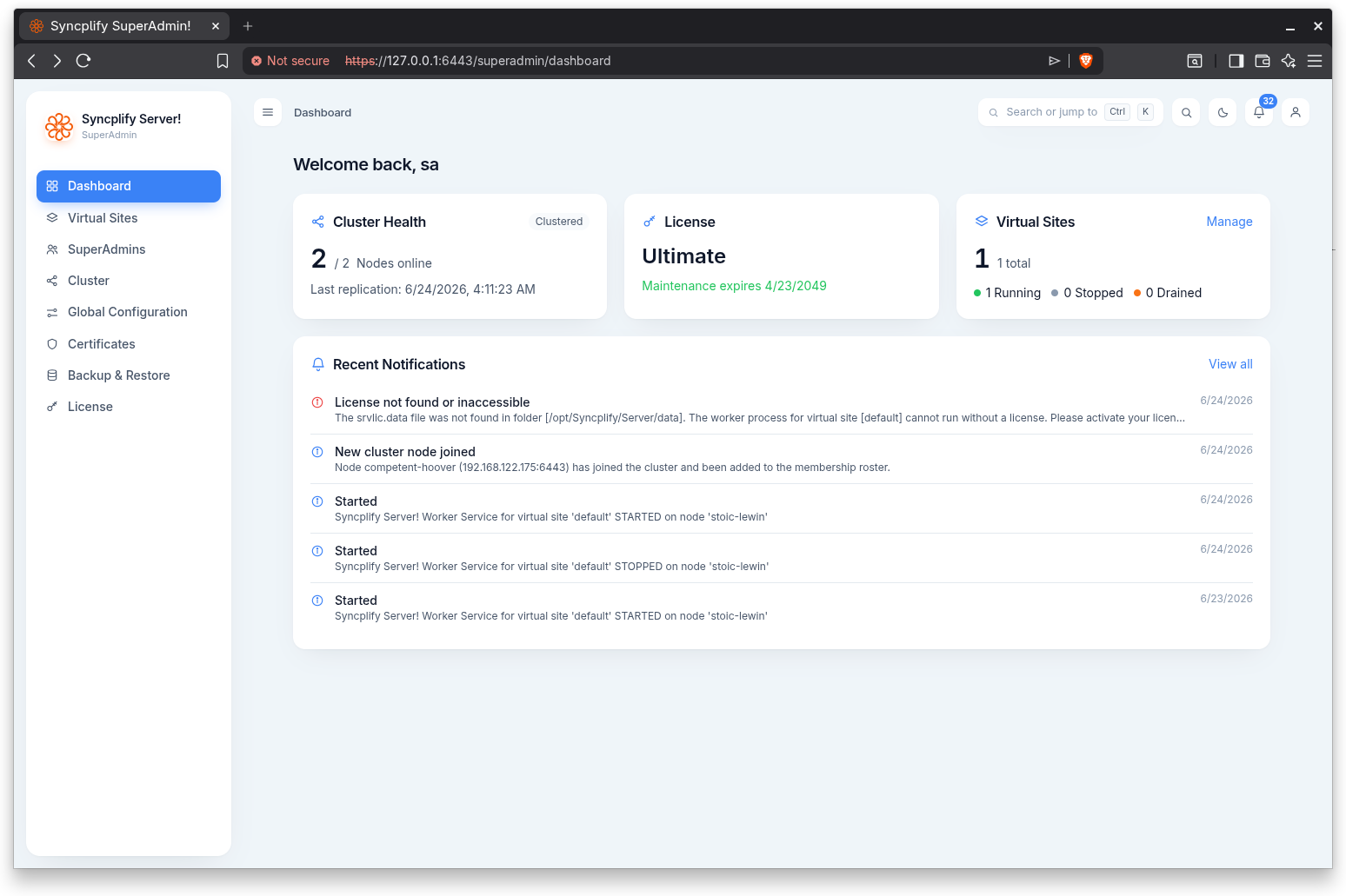
Cluster or node health
The first card adapts to your deployment.
- In a high availability cluster it shows the number of nodes online out of the total, and flags a degraded state when nodes are offline or a draining state when one or more nodes are draining. When available, it also shows the time of the last replication cycle.
- On a standalone server it shows this node by name with an Online indicator and the running version.
License
The License card shows the current edition. When a maintenance date is known, it shows when maintenance expires, and changes color as the date approaches: a neutral note while comfortable, a warning within about fifteen days, and a danger note once expired.
Software updates
The Software updates tile shows the update standing: the running version and when the release channel was last checked, a newer version when one has been published (with whether this license is eligible to install it), an update waiting for an idle moment or in progress on a node, or the outcome of the last update. It is a plain card while everything is in order and takes the full width, in warning or danger colour, when the installation is not eligible, the standing could not be verified, or the last update failed or was rolled back. Its button opens the Updates page, or installs the update directly when the installation is eligible.
Automatic certificates
The Automatic certificates tile follows the certificates the server requests and renews on its own, see Automatic certificates. While nothing is configured it says so and offers to set it up. Otherwise it counts the certificates managed automatically, says when the soonest one expires and that renewal is planned, and turns loud, in warning or danger colour, when a certificate needs attention: a renewal that keeps failing, with the reason, or the per node responder that cannot answer on port 443 on a node, naming the program that holds the port. Site certificates are listed by site name, since their Admins configure them in the Admin console; the tile's buttons open the console's Certificates page or Global configuration.
Virtual Sites
The Virtual Sites card shows the total number of virtual sites and a breakdown of how many are running, stopped, and draining. A Manage link jumps to the Virtual Sites area.
Recent Notifications
The last few notifications are listed with a severity color (information, warning, or error), title, and date. A View all link opens the full Notifications page.